1. Getting started
- Install Tampermonkey (a free browser add-on), then press Install Vine Monitor on the install page.
- Open your Amazon Vine India page and reload it. A 📺 Vine Monitor button appears at the bottom right.
- The first time you click it, create your account (name, email, password). You are then taken to the login screen. After you log in, Vine Monitor opens.
- From then on, clicking 📺 Vine Monitor opens it straight away. You stay logged in until you remove the script from Tampermonkey or log out in ⚙ Settings → Account.
2. The screen at a glance
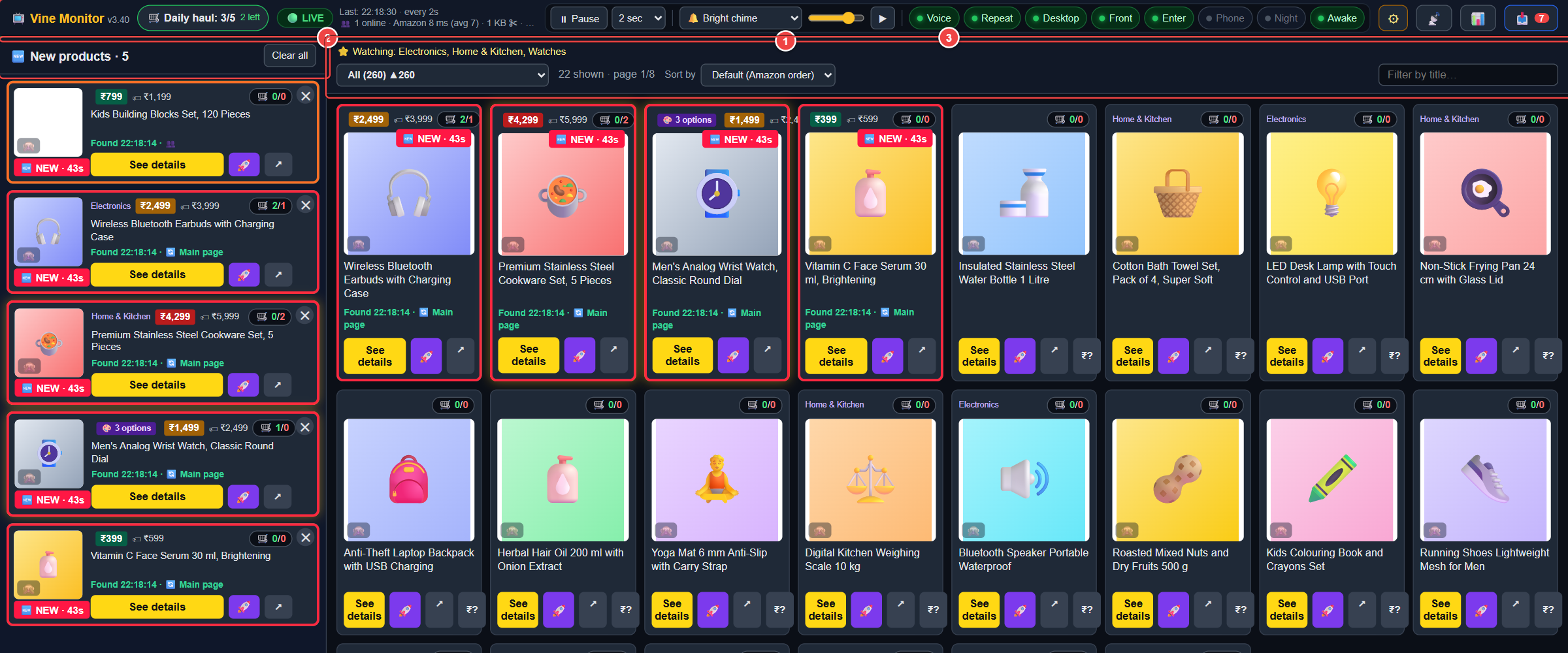
- Top bar – status, controls, alerts, settings
- New products (left) – what was just found
- Live items (right) – everything Amazon lists now
- Top bar – status, controls, alerts, settings.
- Left: New products – items the monitor just found, newest first. This is where alerts come from.
- Right: Live items – all items Amazon currently lists, like the Vine page, but kept up to date automatically.
3. Top bar

- Status badge
- Daily haul
- Status lines
- ⏸ Pause / ▶ Resume
- Refresh interval
- Alarm sound menu
- Volume and ▶ test
- Voice
- Repeat
- Desktop
- Front (priority)
- Enter (quick order)
- Phone
- Night (priority)
- Awake
- ⚙ Settings
- 📊 Stats
- 📡 Live Feed (next update)
- 📥 Inbox
Status and counters
- Status badge
- 🟢 LIVE – checking normally. 🔄 Checking… – a refresh is running. ⏸ PAUSED – you paused it. 🟠 CAPTCHA cool-down – Amazon asked for a CAPTCHA, so scanning rests for 5 minutes (see Troubleshooting). 🔴 error – something failed; it retries by itself.
- 🛒 Daily haul
- How many Vine requests you have placed today out of your daily limit (for example 3/5, "2 left"). It is read from Vine → Orders every couple of minutes and after each order. Click it to refresh. Set your own limit in ⚙ Settings.
- Status lines
- Time of the last check, how often it refreshes, and how fast Amazon is answering.
- 🔇 Click once for sound
- Browsers only allow sound after you click in the page once. Click anywhere and the warning disappears.
Controls
- ⏸ Pause / ▶ Resume
- Refresh runs all the time. This button only appears when the admin has allowed it for your account. It stops or restarts your own scanning of Amazon. When you resume, items that appeared while it was paused may alert as new. While it is paused, a short reminder appears now and then with a Resume at 2 sec button, because nothing new is found while paused (untick the tips switch in ⚙ Settings to stop reminders).
- Refresh interval (2 sec … 10 sec)
- How often the monitor checks Amazon. Faster finds items sooner but makes a CAPTCHA more likely. Each time you open Vine Monitor it starts at the standard value (2 sec unless the admin changes it). You can change it during your visit, and it goes back to the standard value the next time you open the monitor. 2 to 3 sec is a good balance. 1 sec only if enabled for you – the 1-second option is switched on per member by the admin.
- Alarm sound menu
- The default alert sound when a value-based ringtone isn't used. 8 normal tones and 15 loud tones – see Alerts & sound.
- Volume slider and ▶
- Sets the volume and plays the chosen tone so you can hear it.
Switches (green = on)
- Voice
- Speaks the alert aloud, for example "High value item, 2500 rupees".
- Repeat
- Repeats the alarm every 10 seconds for up to 3 minutes, so you don't miss it when you are away from the screen. Any click or key press in the monitor stops it.
- Desktop
- Shows a Windows desktop notification for new products. Click it to jump back to the monitor.
- Front priority members
- Brings the monitor tab to the front when something new is found. Shown only on accounts the admin has marked ⭐ priority.
- Enter
- Turns the big quick-order window on or off for high-value finds (see Ordering).
- Phone
- Sends new finds to your phone through the free ntfy app. Set it up in ⚙ Settings → Phone alerts.
- Night priority members
- Shows only the New products list in big cards you can read from a distance. Shown only on ⭐ priority accounts.
- Awake
- Stops Chrome from slowing the monitor when you work in other tabs or apps. It plays an inaudible hum, so Chrome shows a speaker icon on the tab. Leave it on.
Buttons on the right
- ⚙ Settings
- Categories, limits, ringtones, address, account, hidden words, phone alerts. See Settings.
- 📊 Stats
- When new items drop and how fast they disappear. See Inbox & stats.
- 📡 Live Feed next update
- Opens a new tab with a live list of the latest products found, with the last 250 or last 12 hours, filters, pause and item-size controls. Arrives with the next update.
- 💬 Chat next update
- Opens a chat window where members talk to each other under a nickname they choose (your real name is shown only to the admin; use ✎ Edit to change both). Hover a message to ↩ Reply or react with an emoji, use GIF to send a small animation, and press Ctrl+V in the message box (or the 📷 button) to send a screenshot or picture. You cannot react to your own message. Links, email addresses and phone numbers are refused, you can send only a few messages a minute, and the admin can remove messages. A green outline on the button means there are new messages.
- 📥 Inbox
- A history of what happened: new finds, high-value items, orders, failures. The red number counts what you haven't looked at.
4. Left side – New products
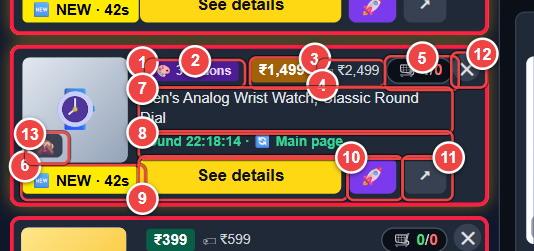
- Category
- 🎨 Options
- ETV badge
- Amazon price
- 🛒 placed / failed
- NEW tag
- Title
- Found time and source
- See details
- 🚀 Order
- ↗ Product page
- ✕ Remove from list
- 🙈 Hide product
Each new item gets a card here with a blinking NEW tag for one minute. The list keeps the newest 150 items, 20 per page. Clear all empties it (the items are not lost from Amazon, they just leave this list).
What is on a card
- Category name
- Amazon's category, when known.
- 🎨 N options
- The product comes in several options such as size or colour. Choose one in the details window before ordering.
- ETV badge (green / amber / red)
- The estimated tax value Amazon assigns to the item. The colour follows your Low / Medium / High limits. ₹? means it hasn't loaded yet (press the ₹? button on the card to load it).
- 🏷 price
- The item's normal Amazon price. It turns highlighted when the price is below the ETV.
- 🛒 placed / failed
- How many Vine Monitor members placed an order for this item (green) and how many tried and failed (red). It starts at 0/0 (older versions hide it) until a member tries the item.
- 💰 HIGH VALUE
- The ETV is at or above the limit you set for that category. These items get the loudest alert.
- Found time, source and status
- When it was found, and how: 🔄 Main page, ⭐ Watched category. 🔁 Relisted means it came back after being gone. GONE in 36s means it was claimed or ran out, and how long it lasted. ✅ Ordered appears after a successful order.
Card buttons
- See details
- Opens the details window (see Details window).
- 🚀
- Starts your order for this item right now. It asks Amazon for the item exactly as the Vine page does. Details in Ordering. It shows ⏳ while working and ✅ when done.
- ↗
- Opens the item's Amazon product page in a new tab.
- ₹?
- Loads the ETV if it isn't known yet.
- ✕ (top right of a card)
- Removes this item from the New products list.
- 🙈 (on the picture)
- Hides this product for good. You can bring hidden products back in ⚙ Settings → Hide products.
5. Right side – Live items
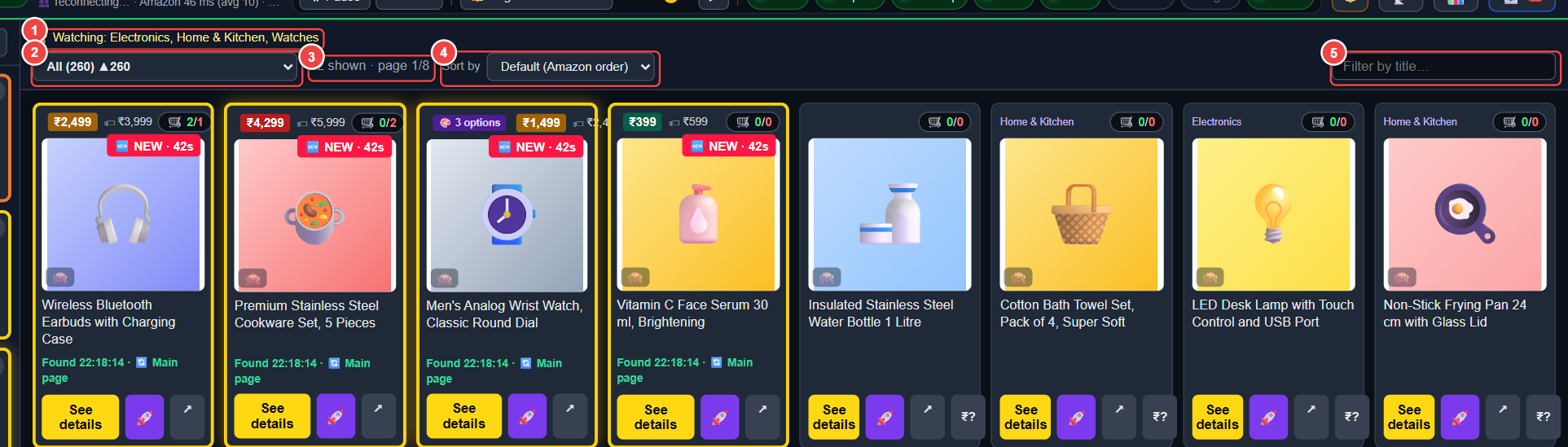
- Watching line
- Category menu
- Shown / page / hidden counts
- Sort by
- Filter by title
- Page numbers (bottom)
Everything Amazon currently lists in the "Additional items" queue, 36 per page like the Vine page. It refreshes every interval, and the page you are looking at stays fresh.
- Watching: …
- The categories you are watching (they are read fully every interval; see Settings).
- Category menu
- Same categories as Amazon's left menu, with item counts. Pick one to see only those items.
- "16 shown · page 1/8 · 20 hidden"
- How many items match, which page you are on, and how many are hidden by your hide-words or 🙈.
- Sort by
- Default (Amazon order), Newest found first, ETV high to low, ETV low to high, Title A–Z, Title Z–A.
- Filter by title
- Type part of a name to narrow the list.
- Page numbers
- Move between pages. Page 1 is always kept the freshest.
The cards have the same buttons as on the left (See details, 🚀, ↗, ₹?, 🙈).
6. Details window (See details)
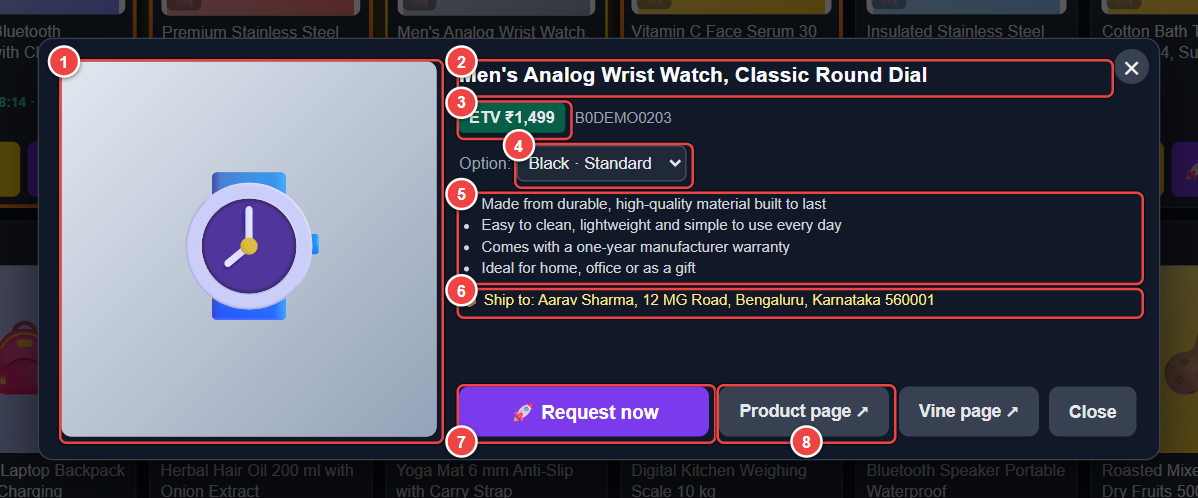
- Picture
- Title
- ETV and item code
- Option menu
- Feature bullets
- Ship-to address
- 🚀 Request now
- Product page ↗ (and Vine page ↗)
- Picture, title, ETV, "Limited quantity", item code
- The full information Amazon shows for the item.
- Option menu
- For items with options, pick the one you want. The ETV and picture update for that option.
- Feature bullets
- The item's main features.
- 📦 Ship to
- The shipping address that will be used (chosen in ⚙ Settings).
- 🚀 Request now
- Starts your order for the selected option.
- Product page ↗ / Vine page ↗
- Open Amazon's own product page, or Amazon's own Vine page with its See details window.
7. Ordering
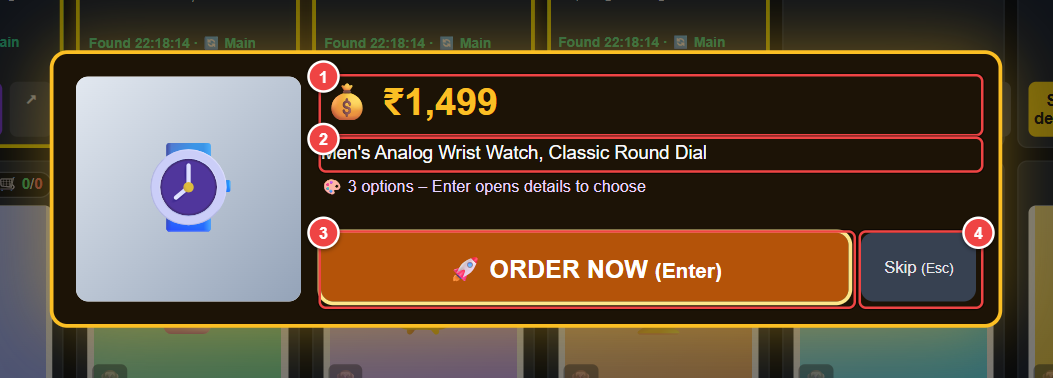
- Estimated tax value
- Title (and options)
- 🚀 ORDER NOW – Enter
- Skip – Esc
How a 🚀 order works
- You click 🚀 (or 🚀 Request now). The monitor reads the item and sends Amazon the request, the same as pressing Request on the Vine page.
- If Amazon needs a checkout step, the monitor completes it for you only if the order total is ₹0, or the only charges are a Marketplace Fee and/or an Open Box charge within your limits (see Settings).
- A progress notice appears at the bottom right. Click it to watch the live step log. You get ✅ Ordered, or ❌ with the reason.
- Cancel auto checkout and take control
- While the automatic checkout is running you can stop it and finish on Amazon's own checkout page yourself.
- Quick-order window (Enter switch)
- When a high-value item is found, a big window shows its picture, value and title with 🚀 ORDER NOW (Enter) and Skip (Esc). Press Enter to order, Esc to dismiss. Turn it off with the Enter switch.
- Items with options
- 🚀 first opens the details window so you can choose an option, then press 🚀 Request now.
- Daily limit
- Amazon limits how many requests you can place each day. The monitor warns you when your limit looks reached but still lets you try.
- Shipping address
- Choose it once in ⚙ Settings. Without an address, 🚀 asks you to pick one first.
8. Settings (⚙)
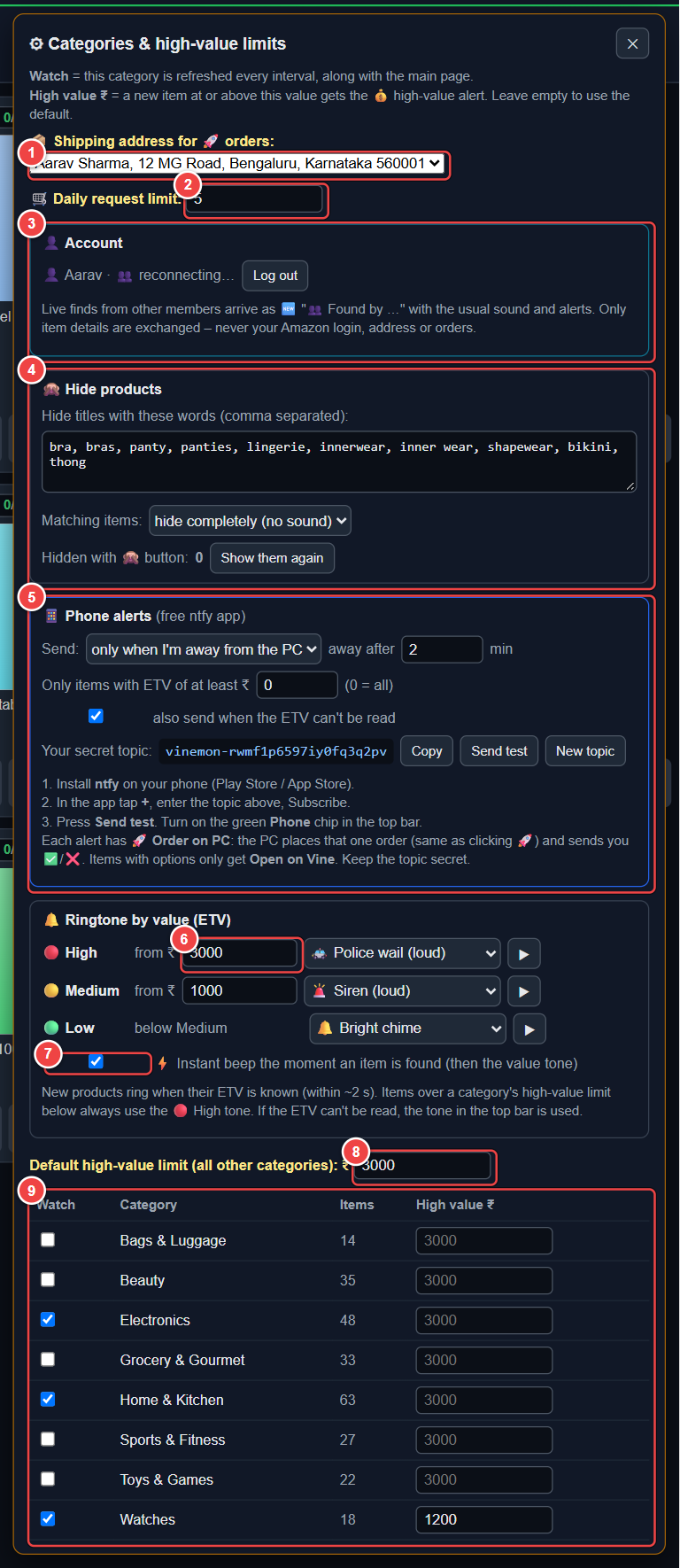
- Shipping address
- Daily request limit
- Account
- Hide products
- Phone alerts
- Ringtone by value (High / Medium / Low)
- Instant beep
- Default high-value limit
- Categories: Watch and High value ₹
Orders and account
- 📦 Shipping address for 🚀 orders
- Which of your Vine addresses is used.
- 💸 Accept a Marketplace Fee up to ₹
- Amazon sometimes adds a small Marketplace Fee to a Vine order. Orders whose only charge is a fee up to this amount are placed. Anything higher, or any other charge, still stops the order. The default is ₹5. Set 0 to place only free (₹0) orders.
- 📦 Accept an Open Box charge up to ₹
- Some items are delivered open box for a charge. An order whose only charges are an Open Box charge up to this amount (plus a Marketplace Fee within its own limit) is placed. A bigger charge, or any other charge, still stops the order. The default is ₹300. Set 0 to refuse Open Box charges.
- 🛒 Daily request limit
- Your Vine daily limit. It drives the Daily haul counter.
- 💡 Show a usage tip now and then
- Every so often a short tip appears at the bottom right, on how to get the most out of Vine Monitor. Untick it to stop the tips.
- 👤 Account
- Shows who you are logged in as, with Log out. If you are logged out, enter your email and password and press Log in.
🙈 Hide products
- Hide titles with these words
- A comma-separated list. Any item whose title contains one of these words is handled by the next setting.
- Matching items
- Hide completely – no card, no sound. Show, but blur the picture – the card stays but the picture is blurred (click it to reveal).
- Hidden with 🙈 / Show them again
- How many products you hid by hand, and a button to bring them all back.
📱 Phone alerts (free ntfy app)
- Send
- Only when I'm away from the PC (after a number of minutes without mouse or keyboard) or always.
- Minimum ETV
- Only send items worth at least this much. 0 = send everything.
- Also send when the ETV can't be read
- Tick to receive items whose value couldn't be loaded.
- Your secret topic, Copy, Send test, New topic
- The private name your phone listens to. Keep it secret. New topic makes a fresh one (subscribe again on your phone).
- Install ntfy on your phone (Play Store or App Store).
- In the app tap +, enter your topic, and Subscribe.
- Press Send test, then turn on the Phone switch in the top bar.
Each phone alert has 🚀 Order on PC. Tapping it makes your PC place that one order, exactly like clicking 🚀, and sends you ✅ or ❌. Items with options get Open on Vine instead.
🔔 Ringtone by value (ETV)
- 🔴 High / 🟡 Medium / 🟢 Low
- Set the ETV where Medium and High begin, and a different ringtone for each, so you can tell a valuable find by ear. ▶ plays the tone.
- ⚡ Instant beep
- A short beep the moment an item is found, before its value tone (which plays once the ETV is known, usually within 2 seconds).
Categories and high-value limits
- Watch (checkbox per category)
- Tick the categories you care about. Watched categories are checked on every refresh, and their cards show when an item is gone.
- High value ₹ (per category)
- An item at or above this value gets the 💰 HIGH VALUE alert, loudest tone, repeat and quick-order window. Leave it empty to use the default.
- Default high-value limit
- Used for every category without its own limit.
9. Alerts & sound
When something new is found, the monitor can alert you in several ways at once. Switch each one on or off in the top bar.
| Alert | What it does |
|---|---|
| Sound | An instant beep, then a tone chosen by the item's value (Low / Medium / High). High-value items always use the High tone. |
| Voice | Says the alert aloud. |
| Repeat | Plays the alarm again every 10 s for up to 3 minutes. |
| Desktop | A Windows notification; clicking it opens the monitor. |
| Front | Brings the tab to the front (priority members). |
| Phone | Pushes the find to your phone. |
| Popup notices | Coloured notices at the bottom right for new products, high-value items and orders. |
Ringtones
Normal: Phone ring, Bright chime, Doorbell, Bubbly pop, Alarm clock, Cuckoo, Marimba, Pager beep.
Loud: Siren, Police wail, Ambulance, Klaxon, Fire bell, Game buzzer, Red alert, Nuclear alarm, Digital watch, Fanfare, Laser zaps, School bell, Dive alarm, Jackpot.
10. Inbox & stats
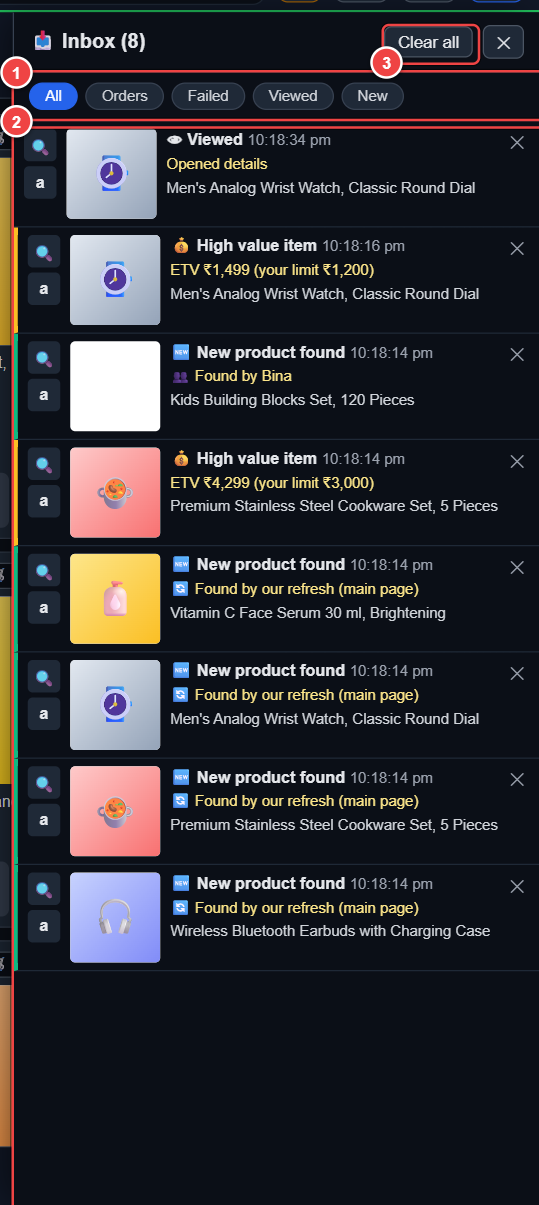
- Filter tabs
- History list
- Clear all
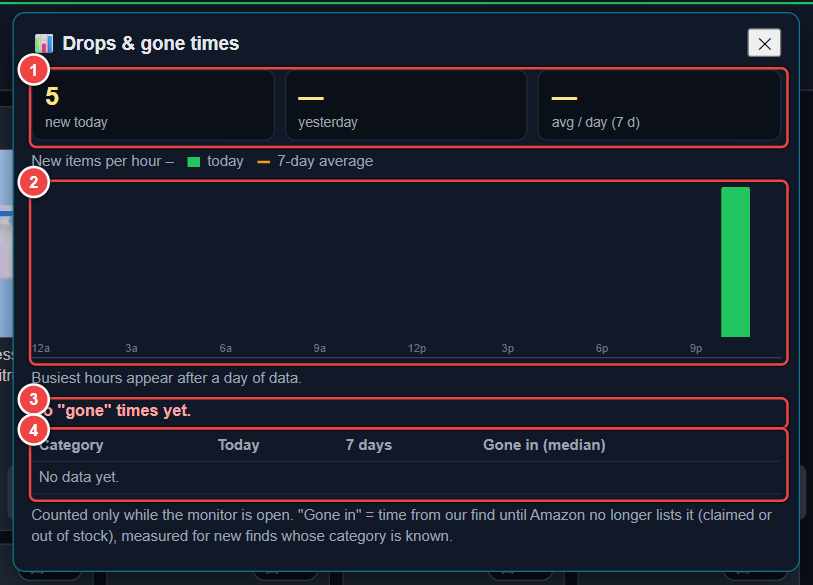
- New today / yesterday / average
- Items per hour chart
- "Usually gone in …" line
- Category table
📥 Inbox
A running history saved on your computer. Filter tabs: All, Orders, Failed, Viewed, New. Entry types: 🆕 new product found, 💰 high-value item, 👁 viewed, ✅ ordered, ❌ failed to order, 🖐 took control of checkout. Order entries keep a step-by-step log so you can see exactly what happened. Clear all empties it.
📊 Drops & gone times
- New today / yesterday / average per day – how many new items appeared (counted while the monitor was open).
- Hourly chart – new items per hour of the day; the bars are today, the markers are the 7-day average.
- Busiest hours – the best times of day to be online, after a few days of data.
- "New items are usually gone in …" – the typical time from finding an item until it is claimed or runs out.
- Category table – items per category today and over 7 days, and the typical gone-in time.
11. Troubleshooting
- I hear nothing
- Click once anywhere in the Vine Monitor page (browsers block sound until then), check the volume slider, press ▶, and make sure the tab isn't muted.
- "CAPTCHA cool-down"
- Amazon asked for a CAPTCHA. Scanning rests for 5 minutes, then continues. To avoid it, use a slower interval (3 s or more) and avoid watching too many categories. If it keeps happening, open Amazon in another tab and solve the CAPTCHA.
- "Signed out – please log in to Amazon"
- Sign in to Amazon in a normal tab, then reload Vine Monitor.
- It seems slow or stops in the background
- Keep the Awake switch on. Don't let the computer sleep (Windows Power & sleep → never while plugged in; set the lid-close action to "do nothing" if you close the laptop).
- "Update required" screen
- A new version is mandatory. Press Update now, press Install in Tampermonkey, then reload the page.
- ETV shows ₹?
- It hasn't loaded or Amazon didn't return it. Press the ₹? button on the card.
- An order failed
- Click the order notice or open 📥 Inbox → Failed to see the step log and the reason (for example daily limit reached, item no longer available, or the total wasn't ₹0).
- How do I stop using it?
- Remove "Vine Monitor India" from the Tampermonkey dashboard.
12. Privacy
- Scanning runs in your browser, with your own Amazon session on your own computer.
- Vine Monitor never asks for your Amazon password.
- Vine Monitor never places an order unless you start it, and never places an order with a charge above the Marketplace Fee and Open Box limits you set (₹5 and ₹300 by default, 0 to refuse).